Updates and maintenance
As administrator, open Settings → Device & System → Updates & Maintenance, then open software updates. Distinguish an app update from a system update before selecting a file.
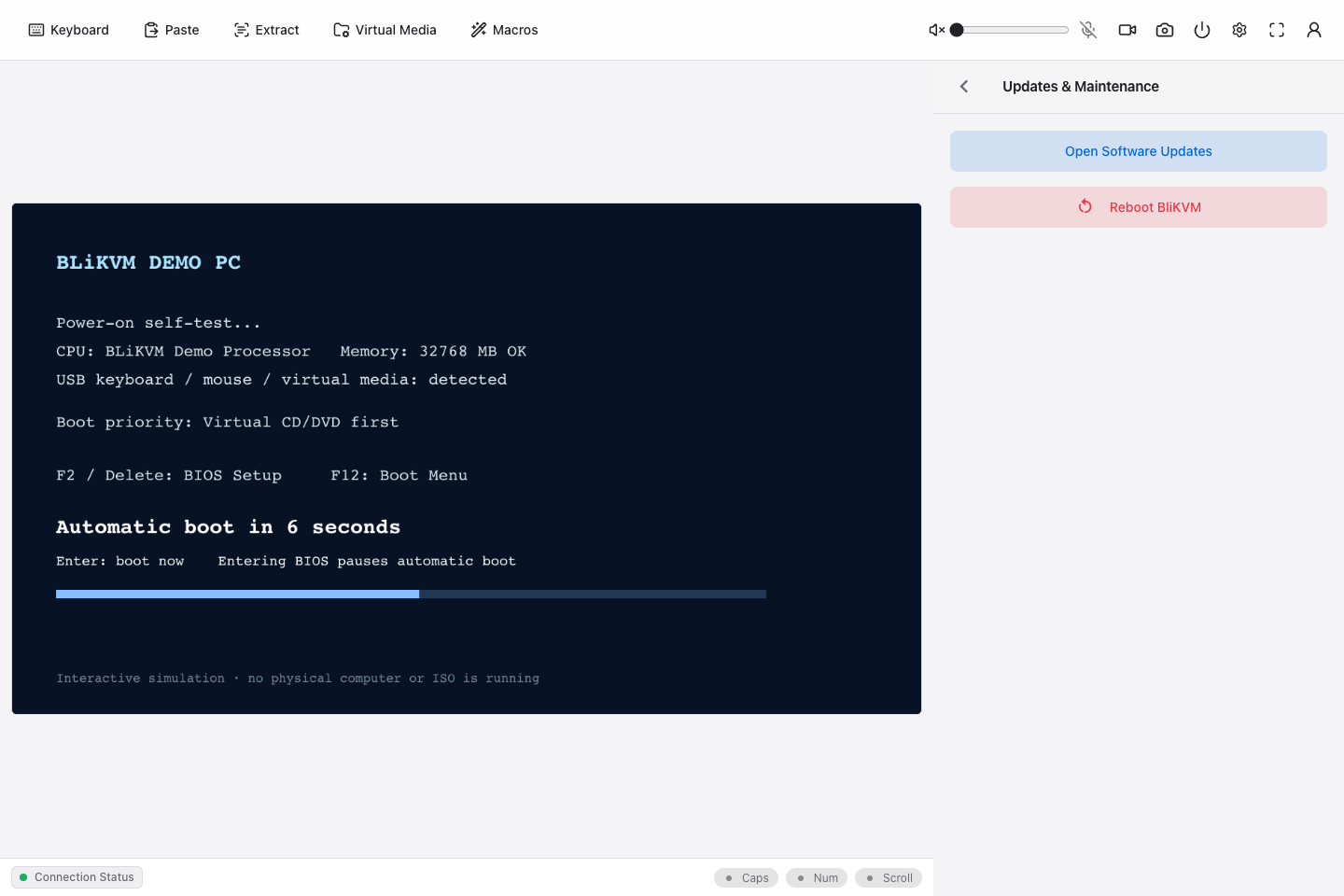
Demo screenshot: this shows the maintenance entry. No real update was executed while preparing the guide.
Choose the update type
| Type | Package | Expected process |
|---|---|---|
| App | Compatible, signed .tar.gz or .tgz app archive. | Validate, install, restart the app and check health. The page may disconnect briefly. |
| System | Compatible, signed .raucb bundle on a system supporting A/B updates. | Write the inactive slot, explicitly reboot when staged, then verify boot, version and health. |
Use packages published for the current platform and update mechanism. Do not extract them or rename unrelated files. Old .deb packages and installer scripts are not interchangeable with current app archives or system bundles.
Before starting
- Record app / system versions and displayed slot information.
- Read release notes and compatibility conditions.
- Keep power and network stable and arrange a recovery route.
- Finish media writes and other tasks that a service or device restart would interrupt.
- If a task already exists, inspect its state before starting another.
App update
- Select App update and a compatible archive.
- Wait for upload, file details and validation.
- Start one task and follow its state and logs; avoid repeated submission.
- Expect a possible disconnect during app restart. Reconnect and return to maintenance as needed.
- Check the final task result, running app version and basic console functions. Reconnection alone does not establish success.
System update
- Select System update and upload a compatible signed
.raucb. - Start the task and observe validation and installation.
- Staged / waiting for reboot means the inactive slot is written. The original system is still running; this is not final success.
- When permitted and prepared for disconnection, reboot BliKVM through maintenance. Do not use the computer's ATX power action.
- Reconnect and check task conclusion, running system version / slot and health. A successful, committed task means the target system passed its update checks.
Interpret task results
| State | Meaning / next step |
|---|---|
| Validating / installing | Still in progress; maintain power. |
| Staged | System written, waiting for the reboot step. |
| Rebooting / checking | Wait for boot and health checks, then inspect the conclusion. |
| Committed | Target version passed task checks; also verify everyday functions. |
| Rolled back | Returned to the original system; inspect details rather than treating it as a successful target update. |
| Failed / attention required | Read errors and diagnostics before retrying. |
Tasks persist on the device. Browser disconnection does not cancel installation. Reconnect to inspect status. Avoid repeated uploads or forced reboot while a previous task remains unresolved; follow the release's recovery instructions.
For support provide package name, model, previous and running versions, task state and exact error text. Remove credentials from logs. Old update.py, dpkg and kvmd-web commands do not belong to the current web update flow.