Video modes
BliKVM captures computer HDMI and sends it to the browser. Encoding (H.264, H.265 or JPEG) and transport (WebRTC or HTTP) serve different stages. Supported combinations depend on device, firmware and browser; follow the real device's options.
Select and verify a mode
Open Settings → Video & Cameras → HDMI Video → Advanced Settings and record the current mode first.
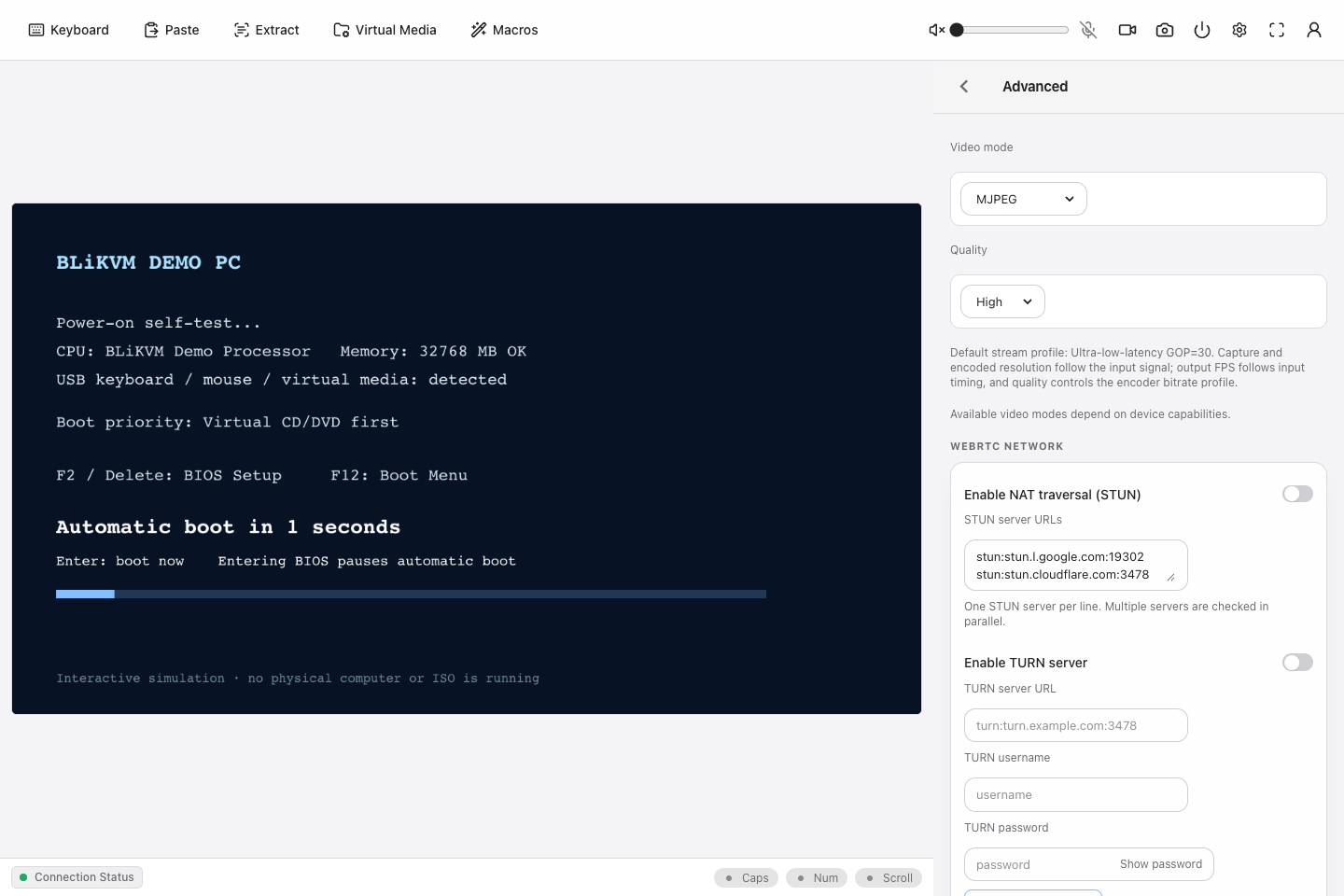
Demo screenshot: simulated options do not establish hardware codec support or performance.
- Start with H.264 WebRTC if available.
- Wait for reconnection and inspect moving content and static text.
- Restore the original mode on failure. If MJPEG is offered, compare it to separate capture problems from transport problems.
- Adjust Quality one step at a time. With current defaults, capture / encoding resolution follows input and output frame rate follows input timing; quality selects bitrate profiles. Old manual GOP, resolution and frame-rate settings do not apply to this flow.
| Mode | When to try | Requirements / trade-offs |
|---|---|---|
| H.264 WebRTC | General remote control | Browser codec support and a reachable media path; see WebRTC. |
| H.265 WebRTC | Both device and browser support it | Browser, OS and decoder support vary; another computer's success does not establish local support. |
| MJPEG | Compatibility diagnosis or fallback | Individual JPEG frames over HTTP(S), usually higher bandwidth and no audio. |
Lower bitrate may help limited bandwidth; raising it cannot fix packet loss or unreachable endpoints. Avoid applying old software's mode conclusions solely by model name.
Remote access
A page loaded through a proxy or tunnel does not establish WebRTC media connectivity. Verify LAN first, then the same mode remotely. The current version no longer offers the old QUIC/MoQ mode.
Screenshots and recording
- Use Screenshot to save a frame and inspect the download.
- If supported by the current WebRTC player and browser, start and stop recording from the toolbar to download WebM. Keep the page open until saved. MJPEG does not offer this recording button.
- Recording depends on player and browser and may not include sound. Test a short clip and replay it before an important recording.
Troubleshooting
| Symptom | Action |
|---|---|
| No signal in all modes | Check computer power, HDMI direction and input resolution. |
| MJPEG works, WebRTC fails | Check ICE / media connectivity and browser codec support. |
| Stutter or blur | Compare LAN, reduce load or quality, then inspect remote network. |
| Picture but no input | Check USB and permissions; codec changes do not fix USB. |